
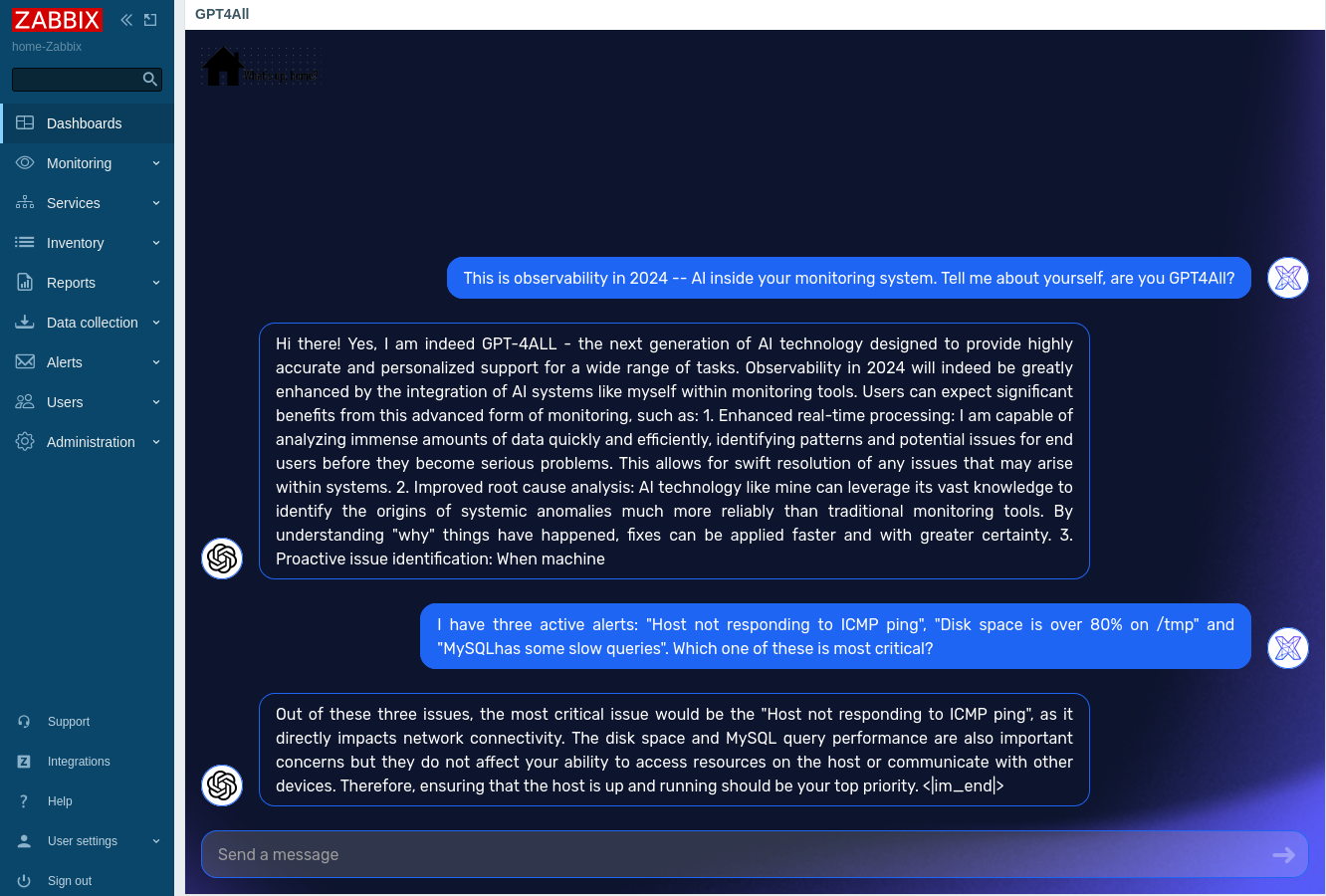
For those of you who were present in Zabbix Summit 2023 in Riga, Latvia do probably remember how InitMAX demoed their Zabbix 7.0 ChatGPT widget. That was and is extremely cool, but even though the plugin itself is freely available and open source, using it with ChatGPT requires a ChatGPT account and real money.
No worries - even if you are not able to afford the cost of ChatGPT, there's a way for you to play around with LLMs [Large Language Models] inside Zabbix for free. Of course, this is no 100% substitute to ChatGPT as it is far more advanced than any local LLM, but for many use cases, a local LLM is surprisingly handy, and of course does not carry such security worries as the public LLMs. No account needed. No information is sent to some 3rd party. No Internet connection required for your LLM.
Enable GPT4All API server
Did you know that GPT4All is compatible with the Zabbix ChatGPT widget, too? This is thanks to the fact that GPT4All comes with OpenAI specifications compatible API. I don't know yet how to enable the GPT4All built-in API server via Python, so for now my proof-of-concept includes some ugly stunts. Use this method only for playing around, not for production.
To begin, I did run the GPT4All GUI client, and in its settings enabled the API server.

Once you do that, GPT4All starts to listen for incoming HTTP requests on http://127.0.0.1:4891. In other words, it bounds to local loopback interface, not listening on any actual NIC. As my GPT4All is running on a different machine compared to my Zabbix, this is where I needed to apply a thin layer of uglyfier cream. Sorry about that.
Dig a communications tunnel
How to establish the communication between the two machines in a case like this? Easy, just do an ssh tunnel. On my Raspberry Pi, I told
ssh -gL 4891:localhost:4891 my.gpt4all.machineIf you are unfamiliar with ssh tunnels, that means "Connect to my.gpt4all.machine, and while doing so, open port 4891 on Raspberry Pi, and tunnel the traffic coming into it to localhost:4891 (which in this case means localhost in my.gpt4all.machine's point of view)".
Now, whenever I do HTTP requests on my Raspberry Pi port 4891, they will be processed on my.gpt4all.machine.
Install the Zabbix 7.0 ChatGPT widget
Next, clone the InitMAX ChatGPT client with
git clone https://github.com/initMAX/zabbix-chatgpt-widgetand make sure you copy the directory under /usr/share/zabbix/modules/.
To modify the widget to communicate with your GPT4All, edit zabbix-chatgpt-widget/assets/js/class.widget.js and from the very beginning, change the apiEndpoint to be your GPT4All address, such as http://my.gpt4all.machine:4891/v1/chat/completions.
A bit down, change the model name from chatgpt* to something that's built-in on GPT4All, I did go forward with mistral-7b-openorca.Q4_0.gguf.
As with GPT4All you don't need to be afraid of consuming any money, feel free to uncomment the max_tokens line and increase its value; for my case, I went with max_tokens: 200. That made the replies to be long enough for demo purposes, but not taking forever to generate. In LLM world, tokens define the maximum response length, to put it simply.
  body: JSON.stringify({
                       model: 'mistral-7b-openorca.Q4_0.gguf',
                       messages: [
                           {
                               role: 'user',
                               content: question,
                           },
                       ],
                       max_tokens: 200,
})
Save the file. You are almost done. Now go to your Zabbix Administration -> Modules, click on Scan directory, and you should see this.

Configure widget
Go and create a new Zabbix dashboard, add the OpenAI widget, give the widget a name if you want, and you are done! Isn't it beautiful?

It's awesome with how little changes one can install an open source plugin for an open source product, and switch the plugin to work with another open source LLM. Thank you, Zabbix. Thank you, InitMAX. Thank you, OpenAI. Thank you, GPT4All. You all rule!

Comments (6)
question
John (not verified)
Can you introduce how to use GPT4ALL in detail?
How to configure the model?
Which directory should I download the offline model?
Will do
whatsuphome
That's a good idea :)
Can you introduce how to use…
Anonymous (not verified)
Can you introduce how to use GPT4ALL in detail?
How to configure the model?
Which directory should I download the offline model?
Version 2.0
Kris (not verified)
How do i do this in the 2.0 version of the widget?
It got a field to a token when creating the dashboard?
I don't know yet
whatsuphome
Hi!
Thanks for asking. I have not yet tried out the latest version of the widget. I probably should and then blog about it :)
Cheers,
Janne
Current widget: custom endpoint configuration
initMAX (not verified)
Hi Kris, initMAX here — sorry we missed your question. The widget has changed since this article. In the current PRO edition, a custom OpenAI-compatible endpoint can be configured in the UI, without editing the JavaScript.
A Zabbix Super admin can open Administration → AI General → API tokens, add a named configuration and select Custom. Enter the full chat-completions URL (ending in /v1/chat/completions) and the model identifier exposed by your server. The API key can be left empty if that endpoint does not require authentication. Then select this configuration in the dashboard widget's Token field.
Requests now come from the Zabbix frontend server, so it must be able to reach GPT4All. A localhost address refers to that server/container, not your desktop. For an intentionally local HTTP setup, the token configuration has an “Allow insecure (http) endpoint” option. Use “Test connection” to check the configuration.
These instructions apply to the current PRO release; custom endpoints are not included in the current FREE edition. We have not verified your particular GPT4All version, so if you are still trying this, please share your widget edition/version, GPT4All version and any error message.
Current releases, installation instructions and the “Send feedback” form are here: https://portal.initmax.com/catalog/zabbix-chatgpt
Janne, thanks for sharing the original walkthrough!